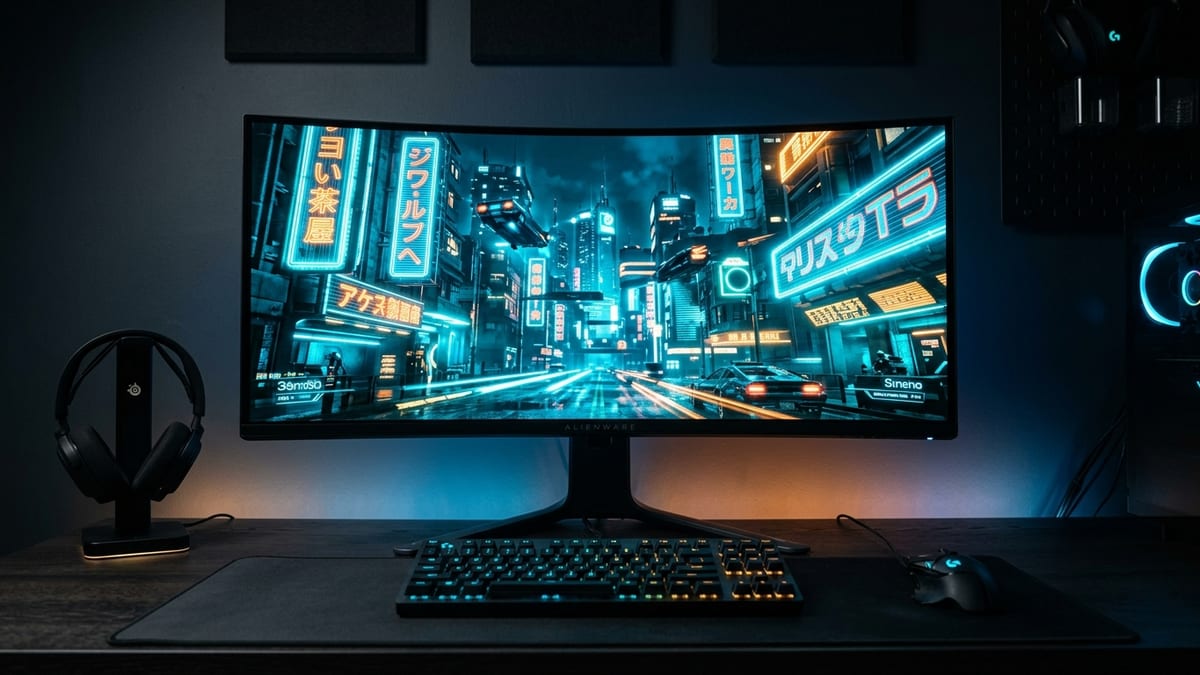
OLED gaming monitors have gone mainstream, and with mainstream adoption comes the mainstream question: will it burn in? The short answer is yes, OLED can burn in, but the risk has been reduced significantly by panel technology improvements and pixel-shifting firmware. The longer answer depends on which OLED type you have, how you use it, and what your warranty covers.
What it covers: The two OLED panel types, how burn-in actually happens, what monitor warranties cover in 2026, and the firmware and usage habits that slow pixel degradation. Why it matters: Burn-in is permanent, and after the standard two-year coverage ends the cost of static HUD elements and taskbars falls entirely on the owner. Who should pick this: PC players buying a first OLED monitor who want to know which panel type, brightness habits, and warranty terms actually reduce the risk.
WOLED vs QD-OLED
There are two primary OLED panel types in gaming monitors as of 2026:
- WOLED (White OLED, used by LG): produces white light through an OLED stack, then filters it through RGB subpixels. WOLED has a longer burn-in track record because it has been in monitors since 2022. Rtings’ long-term test shows WOLED panels develop visible burn-in after roughly 1,500-2,000 hours of static-content exposure.
- QD-OLED (Quantum Dot OLED, used by Samsung and Sony): uses blue OLED emitters with quantum dot color conversion. QD-OLED is newer (2023+) and shows different burn-in characteristics: the blue emitters degrade faster than the red/green quantum dots, which can create color shift before traditional burn-in becomes visible.
Both types will burn in with enough static-content exposure. The question is how much exposure, and what counts as “static.”
What Causes Burn-In
Burn-in is the permanent retention of a static image on the panel. The cause is uneven pixel degradation — pixels that display a bright static element (a taskbar, a HUD, a crosshair) degrade faster than surrounding pixels. Over time, those pixels produce less light, creating a faint ghost of the static element even when the display changes.
The factors that accelerate burn-in:
- Brightness: higher brightness means more current through the OLED emitters, which means faster degradation.
- Static content: taskbars, HUD elements, minimaps, crosshairs — anything that stays in the same position for hundreds of hours.
- Color: blue subpixels degrade faster than red or green. A bright blue HUD element will burn in faster than a dim red one.
- Panel age: OLED panels degrade over time regardless of usage. A 3-year-old panel is more susceptible than a new one.
What the Warranty Says
Monitor warranties are inconsistent. As of 2026:
| Brand | Burn-in coverage |
|---|---|
| LG | covers burn-in on their OLED gaming monitors for 2 years from purchase. This is the most explicit coverage in the market. |
| Samsung | covers burn-in on Odyssey OLED monitors for 2 years. Samsung also offers a “burn-in check” service. |
| MSI | offers a 2-year burn-in warranty on their OLED monitors. |
| ASUS | offers a 2-year burn-in warranty on ROG OLED monitors. |
| Acer | offers a 2-year burn-in warranty on Predator OLED monitors. |
The 2-year window is the industry standard for OLED monitor burn-in coverage. After 2 years, you are on your own. This is shorter than the typical 3-year monitor warranty for non-OLED defects — the manufacturers are explicitly limiting their burn-in liability.
Pixel-Shift and Mitigation Firmware
Modern OLED monitors include firmware-level burn-in mitigation:
- Pixel shifting (also called “pixel orbiting”): the display subtly shifts the entire image by a few pixels at intervals, distributing wear more evenly across the panel. This is active by default on most OLED monitors.
- Panel self-clean / pixel refresh: the monitor runs a maintenance cycle that refreshes all pixels to compensate for uneven degradation. This typically takes 5-10 minutes and can be triggered manually or set to run automatically after a certain number of hours of use.
- Logo dimming: the monitor detects static bright areas (like a TV channel logo or a HUD) and dims them to reduce wear.
These features reduce but do not eliminate burn-in. Pixel shifting helps with edge wear but does not help with a static element in the center of the screen.
Usage Habits That Extend Panel Life
- Lower brightness: 50-60% brightness is sufficient for most gaming environments and significantly reduces pixel degradation compared to 100%.
- Use a dark wallpaper: static desktop elements (wallpaper, taskbar) are the most common burn-in source. A dark, varied wallpaper reduces static exposure.
- Hide the taskbar: auto-hide the Windows taskbar so it is not a static element.
- Use a screensaver: if you step away from your desk, the display should go to sleep after 5-10 minutes, not display a static desktop.
- Run pixel refresh regularly: trigger the monitor’s pixel refresh cycle every 1,000 hours of use. Most monitors will prompt you automatically.
- Avoid max brightness for HDR: HDR content at peak brightness is the worst-case scenario for burn-in. If you play a game with a static bright HUD in HDR at peak brightness, you are accelerating burn-in.
Next read
- For a build that targets stable frametimes rather than peak FPSframerate. How many images (frames) the game shows per second; higher = smoother motion. 60 fps is a common target., see Why 1% Lows Matter More Than Peak FPS in 24-Player MMO Raids.
- For how storage choice affects load and streaming hitches, see PCIe 5.0 NVMe vs Gen4: Real Gaming Load Times and the DirectStorage Question.
- For the console that pairs an upscaler with a fast SSD and 8K output, see PlayStation 5 Pro Released on November 7, 2024 with Faster GPU and AI Upscaling.